
Rack Layout for Switches: How to Plan a Clean, Serviceable Rack
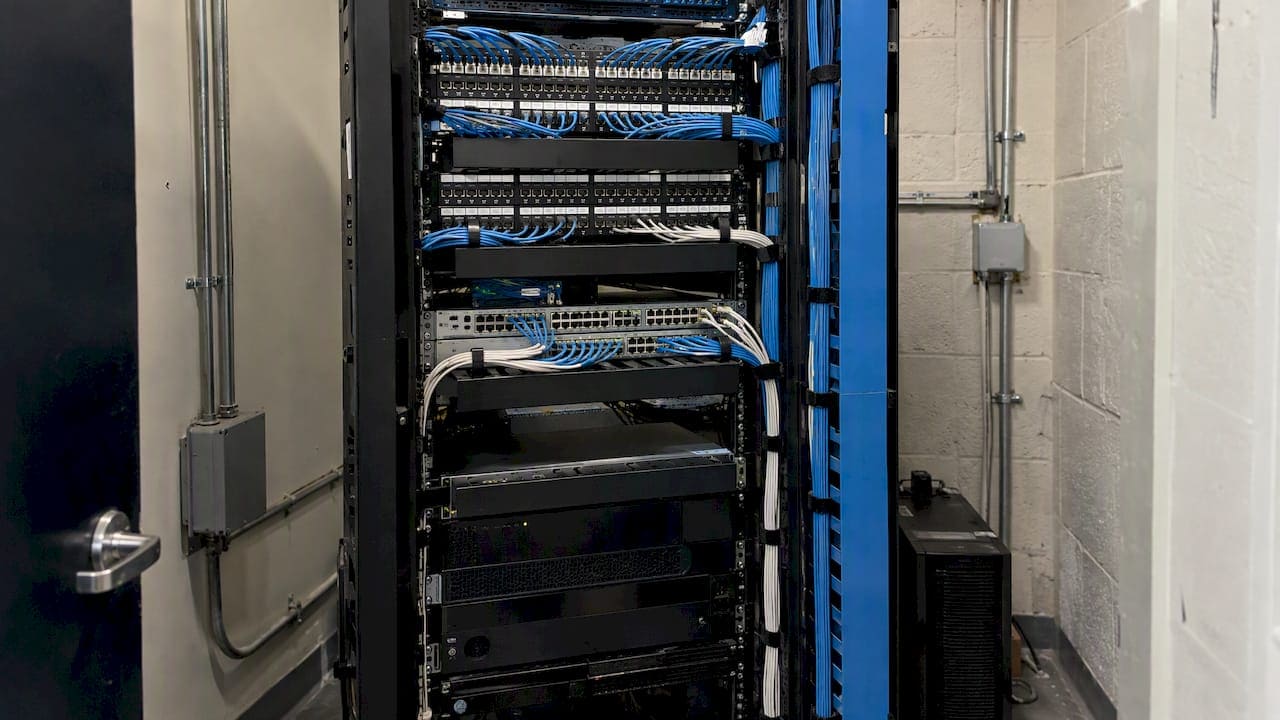
A good switch rack layout puts heavy gear at the bottom, keeps every switch’s intake facing the cold aisle, pairs each patch panel with horizontal cable management, and reserves open rack units for growth. Everything else, from cable routing to labeling, follows from those four decisions. Get them right before the first switch is mounted, and the rack stays easy to service for years. Get them wrong, and every move, add or change turns into a troubleshooting session.
This guide walks through the layout the way we plan it for commercial offices and secure facilities in New York City: sizing the rack, ordering the equipment from top to bottom, managing cable, protecting airflow and drawing the plan so the next technician can read it.
TL;DR
- Plan the layout on paper first: exact U positions for every switch, patch panel, cable manager, UPS and shelf, with open space reserved for expansion.
- Load from the bottom up. Heavy items (UPS units, batteries) sit low, and the rack must be secured to the building.
- Pair every patch panel or switch with horizontal cable management, and run full-height vertical managers on both sides of the rack.
- Point every switch intake at the cold aisle, keep cables out of airflow and keep short, labeled, one-to-one patch cords.
- Document the final layout with front and rear elevations, and keep it current.
Start with the rack itself: size, width and clearances
Before you place a single switch, confirm what the rack can actually hold.
Most network equipment mounts in a 19-inch rack built to the EIA-310 standard, and height is counted in rack units. One rack unit (1U) is 1.75 inches. A 24-port switch is usually 1U, a 48-port PoE switch is often 1U or 2U, and a 24-port patch panel is typically 1U. Add them up and you can see quickly how fast a 42U rack fills once you include cable managers, a UPS and spare space.
Three measurements decide whether a layout works:
- Usable U height. Count the rack units, then subtract anything the room forces on you, such as space reserved for a UPS or a fiber enclosure.
- Depth. Measure your deepest device, including the cable bend radius behind it. Shallow wall-mount cabinets and two-post relay racks are common in older NYC telecom closets, and they limit what you can mount.
- Width and side space. Switches with side-to-side airflow and dense cable bundles need room. ASHRAE’s data-center networking guidance explains that networking racks are typically enclosed 19-inch cabinets several inches wider than server cabinets, giving vertical space for large cable bundles and extra plenum space for side-to-side-cooled gear.
The room matters as much as the rack. Juniper’s installation guidance says to place the rack permanently, with airflow and maintenance clearance, and secure it to the building. In practice that means front and rear access wide enough to open doors, slide a switch out and work on the rear panels. Check each device’s installation guide for its own clearance figures and follow the strictest one.
In a Manhattan building, the telecom room you are given is often smaller than you would choose. That is the reason to plan in detail: a tight closet punishes a casual layout.
The order of equipment from top to bottom
There is no single mandated order, but there is a pattern that works in most commercial closets, and it is consistent with published specifications.
Patch panels and fiber at the top
A Texas Tech telecommunications specification places fiber patch panels at the highest available rack position, with UTP patch panels and wire management at the highest available positions, and requires full-length vertical cable management on both sides of each rack. Putting the horizontal cabling termination at the top works well when cable arrives through an overhead tray, because the rear runs stay short and stay out of the way of power cords.
Switches next to the panels they serve
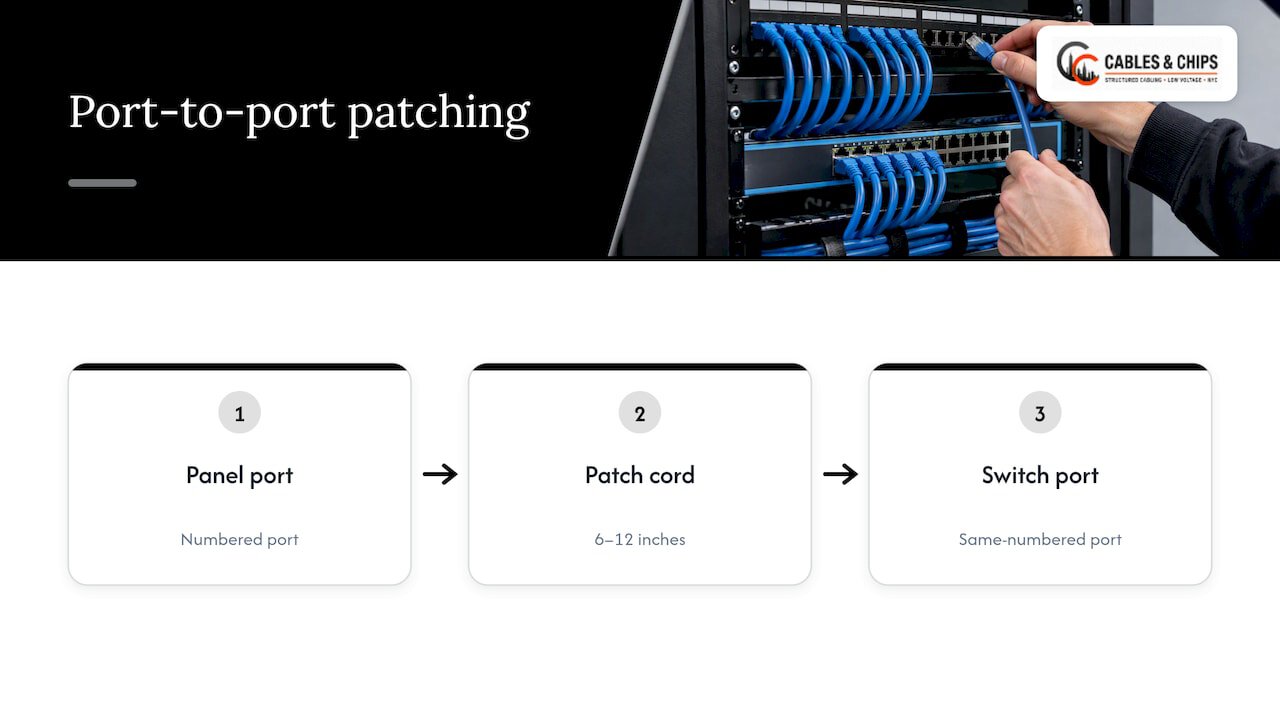
Switches go directly below, or interleaved with, the patch panels they feed. The idea is short, tidy patch cords. Missouri State University’s typical switching rack drawing uses 6 to 12 inch patch cables, generally one-to-one between the switch and the patch panel. A 1:1 relationship means a port on panel 1 connects to the same-numbered port on the switch directly beside it, which makes tracing a link a matter of reading a label.
Heavy equipment at the bottom
UPS units, battery packs and deep servers go low. Tripp Lite’s Rack Basics white paper says to place the heaviest equipment, such as UPS systems and external battery packs, toward the bottom and keep it within the rack’s load rating. Juniper’s safety guidance adds that a partially filled rack should be loaded from the bottom up, with the heaviest component at the bottom, and that stabilizers go in before mounting or servicing.
A sample 42U layout
This is a starting template for a small office core closet, not a rule. Adjust it to your equipment.
| U position | Equipment | Notes |
|---|---|---|
| 42-41 | Fiber enclosure and demarcation | Incoming backbone, closest to overhead tray |
| 40-35 | Patch panel, 1U horizontal manager, patch panel, 1U horizontal manager, and so on | One manager per panel |
| 34-27 | Access switches, each paired with a manager | 1:1 patching to panels |
| 26-22 | Core or distribution switch, firewall | Short, labeled uplinks |
| 21-12 | Reserved, left open | Growth for panels and switches |
| 11-8 | Shelf for modem or small devices | Only if needed |
| 7-1 | UPS and battery packs | Heaviest items lowest |
The open block in the middle matters. Tripp Lite recommends planning equipment placement before installation with future expansion included. A rack that is full on day one has no room for the next switch, and that is when cables start getting draped across the front of equipment.
Pair every panel and switch with cable management
Cable management is not decoration. It is part of the layout, and it uses rack units, so it belongs in the plan from the beginning.
Tripp Lite notes that high-density cabling may need 1U of horizontal cable management for every 1U of patch panels or switches, with vertical managers handling patch cables and power cords. A Los Angeles Unified School District structured-cabling specification goes further, requiring one rack unit of horizontal wire management adjacent to each patch panel, above and below, plus rear cable-support bars. School specifications are strict by design, but the principle holds in any commercial closet: the cable needs a path, a support point and a place to turn.
What that looks like in a real layout:
- Horizontal managers between devices guide patch cords from the front of a switch to the vertical channel without crossing other ports.
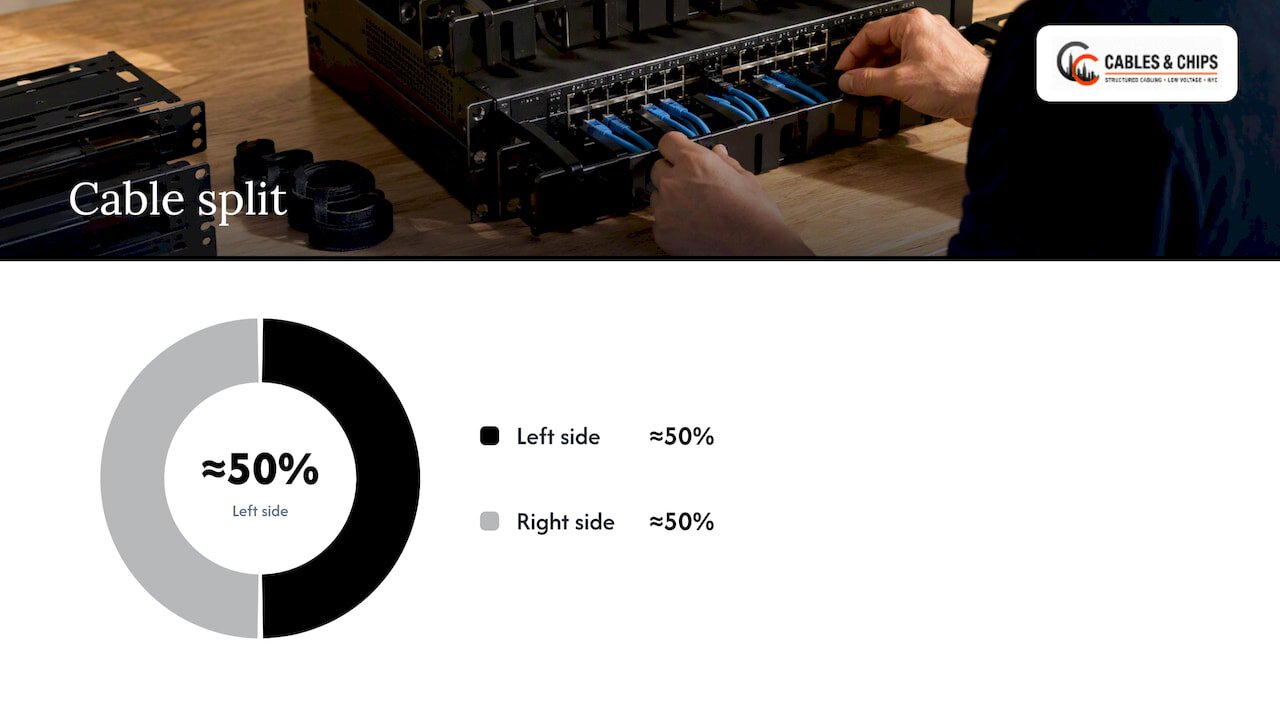
- Vertical managers on both sides carry cords up and down. Splitting cables between the left and right sides keeps either channel from overfilling. NVIDIA’s data-center cabling guide for DGX SuperPOD says cables for the same switch at the same U should be split approximately 50/50 between the rack’s left and right sides.
- Rear support bars hold the weight of the permanent links behind patch panels, so the punch-down or jack is never carrying the cable’s weight.
- Overhead trays or wider cabinets solve density that a standard enclosure cannot. Tripp Lite warns that unmanaged cabling blocks airflow and recommends overhead cable managers where appropriate, and extra-wide or extra-deep enclosures when a standard one cannot handle high-density cabling.
For a closer look at how panels fit into the picture, see our guides on the role of patch panels in networks and patch panel design for office networks.
Airflow comes before appearance
A rack that looks neat can still run hot. The layout has to respect how each switch moves air.
IBM’s SAN42B-R installation guide is a clear example of the requirement: the switch intake side must face the cool-air aisle, all rack equipment must force air in the same direction, and ambient temperature must not exceed 40°C (104°F). Dell’s July 2023 installation guide for its S5200F-ON switches specifies a 45°C (113°F) maximum ambient temperature and warns against overloading and compromised airflow. Limits differ by model, so read the spec sheet for each switch you place.
Here is what that means for layout:
- Check airflow direction on every device. Front-to-back, back-to-front and side-to-side switches should not be mixed carelessly in one rack. If a switch is ordered with the wrong airflow option, it pulls hot exhaust air from its neighbors.
- Use blanking panels in open U spaces so hot air cannot recirculate to the front. This matters most in the open block you reserved for growth.
- Keep cable out of intake and exhaust paths. NVIDIA’s cable guidelines require that cables do not block airflow or the extraction of transceivers and fans.
- Mind the room. If you have more than one rack, Tripp Lite recommends arranging them in hot-aisle/cold-aisle rows, fronts facing fronts and backs facing backs, and says this can cut energy use by up to 20%. In a single-rack closet, the equivalent is making sure the room has cooling and the door is not the only air path.
Small NYC closets are where this goes wrong most often. A rack sits in a space shared with a building’s electrical panels or storage, with no dedicated cooling, and the first summer exposes it. If your closet cannot hold the temperature limits above, fix the room before you fill the rack.
Mounting a switch the right way
The physical install is simple, but it is where people get hurt and equipment gets damaged. The vendor guidance converges on a short list.
- Secure the rack and fit stabilizers before mounting or servicing, per Juniper’s rack and cabinet mounting warnings.
- Use two people to lift a larger switch, attach the mounting brackets first, level the chassis and tighten the screws on both sides, as in Juniper’s EX-series mounting steps.
- Respect the rack standard and orientation. Dell’s guide calls for a 19-inch EIA-310-E rack and warns against mounting the back panel downward.
- Support the weight. A deep switch hung only from its front ears puts load on the bottom screws. Use rear rails or a shelf for heavy or deep units.
- Ground the equipment. Dell flags inadequate earthing as a hazard, so tie the rack and devices into the room’s grounding.
None of this is difficult. It simply gets skipped when a crew is rushing to meet a move-in date.
Route and label cables as you go
The time to make cabling tidy is during installation, not after. NVIDIA’s guidelines give a practical sequence: mount cables one by one before plugging them in, use Velcro ties, support cables for strain relief, separate copper and fiber, and leave little slack. The same page asks installers to leave cables clear of airflow and service paths, label both ends and along the run, color-code ties to indicate endpoints, and test physical and logical links as each cable is installed.
A few additions from our field experience:
- Use hook-and-loop ties, not zip ties, on bundles you will touch again. Over-tightened plastic ties can deform cable, which hurts performance on higher-category copper.
- Match patch cord length to the job. A 1-foot cord between a switch and the panel next to it is cleaner than a 7-foot cord looped in the channel.
- Color-code by function, for example one color for user ports, one for uplinks, one for VoIP or security. Choose a scheme once, write it down and apply it everywhere.
- Keep copper and fiber on separate paths. Fiber jumpers need a gentle bend radius and their own route.
- Support the cable weight. NVIDIA’s guidance calls for strain relief with support every 2 meters (about 6.5 feet) or a tray, and for cable weight to be carried by the rack rather than by the switch ports.
If your rack is already a tangle, our walkthrough on organizing messy server rack cables covers the cleanup order, and our server room cable management guide covers the wider room.
Document the layout so it stays true
A rack layout that lives only in the head of the person who built it is a liability. Write it down in a form that a stranger can use at 2 a.m.
A useful rack elevation shows:
- Every device in its exact U position, with name, model and port count.
- A front view and, where equipment is accessible from both sides, a rear view.
- Open and reserved U space, so growth is visible.
- Power: which PDU and which circuit feeds each device.
- Airflow direction for each switch, especially if you have mixed models.
Keep fast-changing details, such as individual patch cord connections, in a port map or a spreadsheet rather than on the elevation, since they change often and will make the drawing stale. Visio and DCIM tools both handle rack diagrams, but a clean spreadsheet and a printed copy taped inside the closet door are better than a perfect diagram nobody updates.
For permanent cable runs, the paperwork is the as-built set: labeled drawings, test results and rack elevations delivered at project close. Our structured cabling as-built documentation guide describes what a complete handoff package should contain, and cable testing and certification results belong in it, so the link from panel to wall jack is proven and on record.
Perspective: what we see in New York closets
We work in commercial telecom rooms every week, and the pattern repeats. The rack was fine when it was installed. Then came three tenants, two IT vendors and a security camera project, and nobody owned the layout. Switches ended up wherever there was a free U, patch cords hung in loops, and the one device that needed airflow was behind a door with a power strip taped to it.
Our view is that a switch rack is infrastructure, and infrastructure should be planned, tested and documented like infrastructure. Your network is only as strong as the infrastructure behind it. That is why we start with a site survey, measure the closet and the equipment, then draw the elevation before anyone picks up a drill. We reserve space for growth, specify the cable management as part of the rack and label everything so the next person does not have to guess.
The most common mistake we correct is skipping the plan. The second most common is treating cable management as an extra. In a rack, a cable manager is as much a part of the layout as a switch.
— Ken
When to bring in a contractor
You can lay out a small, single-switch rack in an afternoon. It gets harder when any of these apply:
- You are consolidating several closets or moving an office.
- The rack serves PoE devices such as access points, phones and cameras, where power budget planning affects switch choice and placement.
- You have a mix of copper and fiber, or a new backbone is coming (see our fiber optic backbone design guide).
- The closet is shared, secured or shallow, and clearances are tight.
- Existing cabling is abandoned, unlabeled or untested.
Cables & Chips handles server rack installation and network closet work for commercial offices and secure facilities across New York City. We design the rack layout, install and dress the cable, test and certify it, and hand over documentation. If you want a second set of eyes on a closet before you commit to a layout, schedule a no-obligation site survey and we will walk the space with you.
For related planning, see our guides to network closet organization, structured cabling system components and horizontal cabling.
A pre-install checklist
Use this before the first switch goes in.
- Measure the room: door swing, front and rear access, ceiling height and distance to the cable tray.
- Confirm the rack’s height, depth, width and load rating.
- List every device with its U height, weight, depth, airflow direction and power draw.
- Draw the elevation: panels and fiber at the top, switches beside their panels, heavy gear at the bottom.
- Add a horizontal manager for each panel or switch, and vertical managers on both sides.
- Reserve open U space and mark it on the drawing.
- Verify cooling and ambient temperature against each device’s limit.
- Plan power: PDUs, circuits, UPS runtime and grounding.
- Define the labeling and color scheme, and print the labels before the install.
- Plan testing and delivery of documentation as part of the job.
FAQ
How many switches can go in one rack?
There is no fixed number. It depends on usable U height, power, cooling and cable density. As a planning rule, count each switch plus its paired cable manager, add the patch panels it serves, and keep part of the rack open for growth. A full rack with no open space is a warning sign, not an achievement.
Should switches go at the top or bottom of the rack?
In most commercial closets, patch panels and switches sit in the upper and middle part of the rack, close to the cable entry, while heavy items such as UPS units and batteries go at the bottom. Published guidance supports that split: fiber and UTP panels at the highest positions and the heaviest equipment toward the bottom.
How do I keep a switch rack cool?
Face every switch intake toward the cold aisle, avoid mixing airflow directions, fit blanking panels in empty U spaces and keep cables out of intake and exhaust paths. Then check the room’s ambient temperature against each device’s limit, which is 40°C (104°F) for the IBM switch cited above and 45°C (113°F) for the Dell models. A closet with no dedicated cooling often needs a fix before the rack does.
What belongs on a rack layout diagram?
Show each device at its exact U position, with front and rear views where both sides are accessible. Add open space, power feeds and airflow direction. Keep individual patch cord connections in a separate port map, since they change often.
Can I rack a switch myself?
For a single small switch in a stable, secured rack, yes, if you follow the vendor’s mounting steps and use two people for heavier units. For multi-rack installs, structured cabling, fiber or secured facilities, a licensed low voltage contractor saves rework and gives you tested, documented results.
Sources
- Juniper: Rack-Mounting and Cabinet-Mounting Warnings
- Juniper: Mounting an EX-series switch on racks or cabinets
- Dell PowerSwitch S5200F-ON Series Installation Guide
- Texas Tech: Data Communications Cabling Specifications
- Structured Cabling (Existing Site) specification
- Missouri State University: Typical Switching Rack
- Tripp Lite: Rack Basics
- NVIDIA: Cable Installation and Management Guidelines
- NVIDIA DGX SuperPOD: Deploying the Bundles
- ASHRAE TC9.9: Data Center Networking Equipment
- IBM: SAN42B-R Installation, Service, and User Guide