
WiFi Capacity Planning for Offices: A Practical Guide

WiFi capacity planning means sizing a wireless network for how many devices are active at the same time and what they are doing, not just for where the signal reaches. For a commercial office, the answer comes from five steps: count clients, estimate concurrency, convert applications into airtime, divide by a realistic per-access-point (AP) load, then build the cabling and switching that lets each AP deliver it. Skip any step and you get full signal bars with slow video calls.
We design and cable WiFi for New York City offices, and the pattern is consistent: capacity problems are rarely a radio problem alone. They are design problems that show up as cabling, switch and placement problems later. This guide walks through the method, with the numbers and sources you need to do it properly.
TL;DR
- Coverage is where the signal reaches. Capacity is how much real traffic the network carries when many clients share the air at once. Design for both, and take the higher AP count.
- Count devices, not people. Cisco’s planning guidance treats one user as 1.5 to 3 clients for resource planning.
- Real-world loads of roughly 15 to 50 clients per AP radio are a safer basis than vendor maximums.
- Capacity depends on the wire as well as the air: PoE budget, switch uplinks and tested cable runs decide whether each AP can perform.
- Keep a growth margin, and re-check the plan whenever headcount, floor layout or applications change.
Capacity versus coverage: the difference that drives the design
Coverage answers a simple question: is there usable signal in this part of the floor? Capacity answers a harder one: when everyone is on a video call at 10 a.m., does the network still perform?
A Nortel Networks whitepaper puts it plainly: capacity is the throughput a WLAN can provide to users, while coverage is the area over which wireless signals propagate. The same paper notes that a basic site survey can guarantee coverage but does not by itself guarantee that capacity or performance targets are met, because the medium is shared and effective throughput depends on traffic characteristics.
That shared medium is the key idea. Every client on a channel takes turns. When more devices compete for the same airtime, each waits longer. Adding signal strength does nothing for this. Adding APs, spreading clients across bands and channels, and keeping slow clients from hogging airtime does.
This is why the AP count for an office is always the larger of two numbers: the count needed to cover the floor area, and the count needed to carry the load.
Step 1: Count the clients you actually have to serve
Start with an inventory, not a headcount. For each floor or zone, list:
- Employees who sit there, and how many devices each carries (laptop, phone, tablet, sometimes a second laptop or a wearable).
- Shared devices: conference room displays and room systems, wireless printers, badge readers or sensors that use WiFi, handheld scanners.
- Guests and visitors, including peak days such as client meetings and events.
- Expected growth over the lease or refresh cycle.
Cisco’s high client density design guide offers a useful conversion: for general resource planning such as IP addressing, it treats a single user as 1.5 to 3 clients. A 100-person office can therefore present 150 to 300 clients to the network before guests and IoT are counted.
The Pakedge wireless design guide frames the same thing as an interview: ask for the maximum number of users and wireless devices on the network at any given time, on average and at peak. Peak is the number you design to.
It also notes that networks typically change in size in only one direction: they get larger. Build the growth into the count now, because adding APs later means opening ceilings and pulling cable in an occupied space.
Step 2: Estimate concurrency
Not every associated device is transmitting at once. Concurrency is the share that is active in the same moment, and it varies by space.
H3C’s Wi-Fi 7 enterprise office deployment guide gives two reference points. For a general office area with 50 to 200 access clients, it plans 45 concurrent clients per AP at a 40% concurrency rate. For a high-density office area with the same client range, it plans 60 concurrent clients per AP at a 60% concurrency rate.
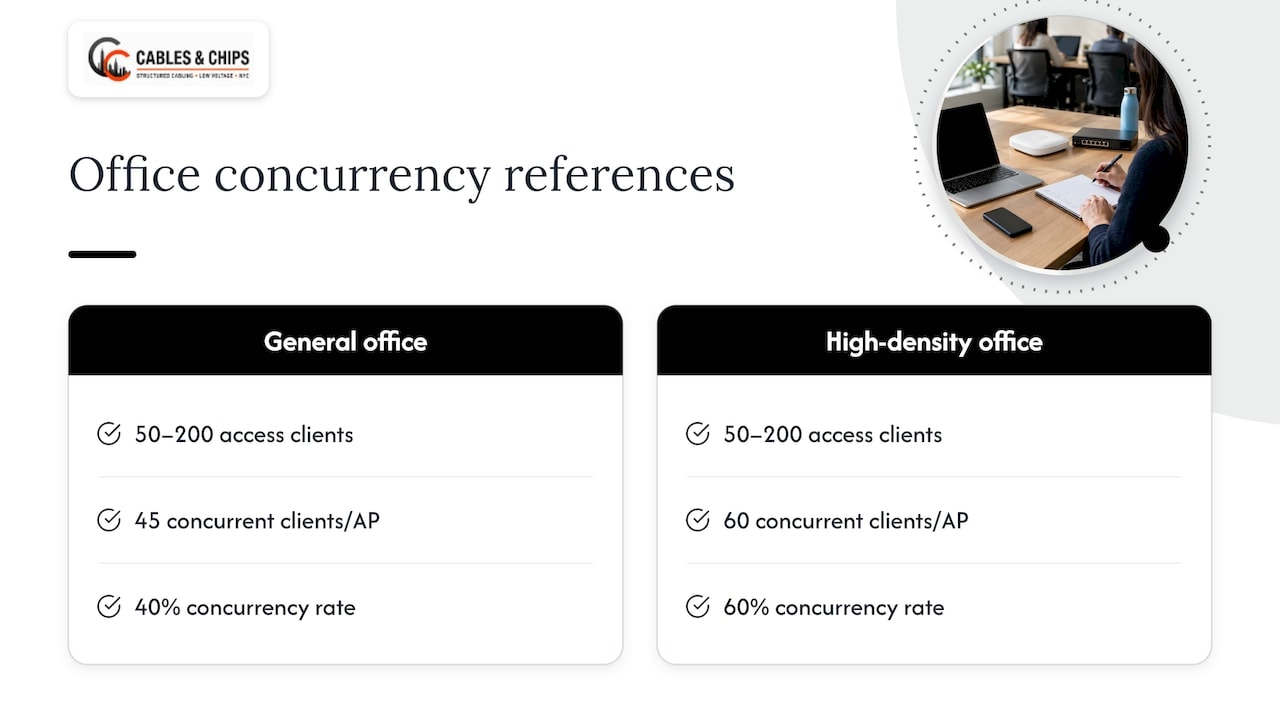
Treat these as vendor design inputs, not guarantees. Your own space may sit outside them. A trading floor, a call center or a training room runs hotter than an office full of heads-down staff. A law office with a conference-room-heavy day has bursts that an all-day average hides.
For each zone, write down a base concurrency and a peak concurrency. Use the peak for sizing.
Step 3: Translate applications into bandwidth and airtime
Clients are not equal. A phone idling on a corporate SSID barely registers. A laptop in a video conference is a sustained load. The H3C guide lists typical office service requirements:
| Service | Typical bandwidth per client |
|---|---|
| Web browsing | 2.5 Mbps |
| Instant messaging | 2 Mbps |
| 4 Mbps | |
| Office software | 4 Mbps |
| Audio/video conference | 10 Mbps |
| Cloud desktop | 16 Mbps |
| File transfer | 16 Mbps |
| Non-work traffic | 2 Mbps |
These figures come from H3C’s office scenario guide. Multiply by concurrent clients in each application class and you get a demand figure per zone.
Then apply the reality check. Raw link rate is not usable throughput. Netgear’s high-density guide lists several losses: protocol and packet overhead can cut AP throughput by 40 to 50 percent, slow or distant clients can cost another 50 percent, an uneven split of clients between 2.4 and 5 GHz can cost a further 50 percent, and control traffic at low data rates can take another 25 percent. These effects compound, which is why a number on a spec sheet never matches the number on a speed test in a busy room.
Why airtime is the real budget
WiFi capacity is a share of time on a channel, not just megabits. When several access points and clients share a channel, airtime is divided, and slow transmitters consume more than their fair share because the same data takes longer to send.
NetSpot’s capacity guidance sets targets worth borrowing as a sanity check: airtime utilization below about 70 percent during peaks, average throughput per user that meets application needs, and contention rates in single digits. If your design cannot meet those at peak, add APs, change channel width or rebalance bands before the cable goes in.
Step 4: Decide how many access points the load requires
There is no single universal clients-per-AP number, and anyone who quotes one without asking about applications is guessing. The published ranges differ because the assumptions differ:
- Network World notes that vendors may claim 100 to 300 or more users per AP, but real applications mean you should plan for 15 to 50 clients per AP radio, possibly higher with Wi-Fi 6 APs and clients in high-density environments.
- Netgear says that when 25 to 30 active users share an AP’s coverage area, roughly 500 to 1,000 square feet, you should apply high-density best practices, and it recommends capping clients at 25 to 30 for high-throughput applications with a minimum RSSI threshold of -73 dBm.
- Cisco’s high-density guide defines a high client density environment as more than one client per 1.5 square meters, and uses a rule of thumb of 50 users per radio for 400 users in a single corporate space.
A worked example
Take a hypothetical 150-person office with three devices per person, plus 30 shared devices.
- Associated clients: 150 × 3 + 30 = 480.
- Peak concurrency at 40%: about 192 active clients.
- Design load per AP at the cautious end of the Netgear range, 25 to 30 active clients: 192 ÷ 30 = 6.4, and 192 ÷ 25 = 7.7. Plan for 7 to 8 APs by capacity.
- Coverage count: determined by the floor plan, wall construction and a survey. Suppose it comes to 6.
- Take the higher number: 8 APs, then add overlap and growth margin.
The point is the method, not the result. Your device mix, concurrency and application load will move the answer. If your capacity count is larger than your coverage count, you have a density problem that more power cannot solve.
Design overlap for load balancing
Netgear recommends overlapping AP cells in high-density areas so that each client sees two to three access points. If one or two APs are overloaded at a given moment, clients can be steered to another without the user noticing. That only works if the APs are placed and powered for it, which brings the cabling plan into the capacity plan.
AP placement also affects capacity directly. Mounting height, ceiling type and antenna pattern change how cells overlap. Our guide to AP mounting height rules covers the differences between offices and warehouses.
Step 5: Choose bands, channels and widths on purpose
More spectrum sounds better. In a dense office, it often is not.
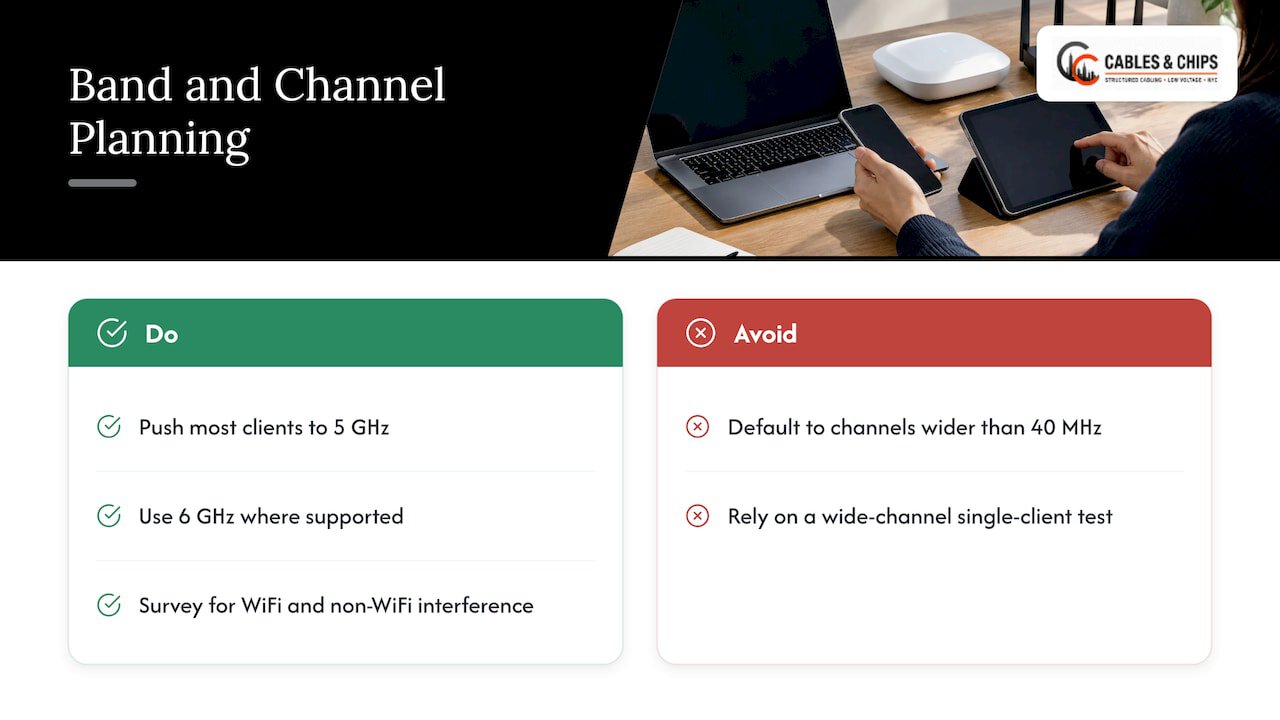
In the U.S., the 2.4 GHz band has three non-overlapping channels: 1, 6 and 11, as iFeelTech explains. That is too few to reuse in a multi-AP office, which is why high-capacity designs push most clients to 5 GHz and, where supported, 6 GHz. Netgear points out that an uneven split of clients between bands can reduce effectiveness by half, so band steering and sensible SSID design matter.
Channel width is the other lever. Netmantics argues that in offices, channels wider than 40 MHz should generally not be the default, because wider channels reduce reuse, raise signal-to-interference requirements and increase thermal noise. Narrower 20 or 40 MHz channels give more non-overlapping options in dense environments. A wide channel looks fast in a single-client test, but a single-client test only shows that one client can use most of the airtime when nobody else is talking. It says little about how airtime is shared, how retries scale or how latency behaves under load.
Channel planning also needs a physical check of the space. Netgear recommends a site survey to identify and troubleshoot interference from WiFi and non-WiFi sources before you finalize the plan.
Step 6: Size the wire behind the air
This is the step that most capacity guides treat as an afterthought, and it is where the cabling contractor matters.
An AP that can move several gigabits over the air is limited by what its uplink delivers. Netgear advises upgrading the wired network to support higher-throughput APs: PoE gigabit switches at the edge and 1G or 10G switches at the aggregation and core layers. Verteks makes a related point: multi-gigabit switches supporting PoE+ or PoE++ are needed to deliver high-speed backhaul and power to enterprise APs.
In practice, that checklist looks like this:
- Cable category: each AP drop should be a tested run that can carry the multi-gigabit rate your APs negotiate. See our notes on testing existing runs before choosing Cat6A.
- PoE budget: total switch power must cover every AP at its full draw, not its idle draw.
- Uplinks: access switch uplinks must carry the sum of the APs on them at peak. Where runs are long or the backbone needs more headroom, fiber is the answer. Our CAT6A versus fiber decision guide lays out the tradeoffs.
- Drop count: plan spare drops for future APs now. Pulling extra cable during buildout costs far less than reopening finished ceilings.
- Documentation: label every run and record it, so the next change does not start with a hunt. We cover this in our as-built documentation guide.
For a deeper look at drop layout, our WiFi access point cabling plan walks through the process from the IT manager’s side, and our commercial WiFi cabling best practices cover the installation details.
Step 7: Validate the plan before and after installation
A capacity plan is a hypothesis until it meets the real building. Predictive modeling helps you place APs on a floor plan, but New York offices bring dense walls, elevator cores, glass partitions and mechanical rooms that shift the picture.
Validation has two stages:
- Before installation: model the floor, then walk the space to check for interference sources, ceiling heights and mounting options. Check your assumptions about client counts and applications with the people who use the space.
- After installation: test cable runs, then test WiFi under load in the busiest rooms and at the busiest hours, not only with a single client in an empty area.
The Nortel paper makes the point that simple surveys cover reach but not capacity, and that co-channel interference can degrade performance in larger deployments where channels are reused. Validation under realistic load is how you catch that.
WatchGuard’s wireless design documentation describes the output of a good capacity analysis: the optimal number of clients per AP radio, covering idle and active clients, airtime demand and minimum data rates for different application types, with growth built in.
Step 8: Keep a margin and revisit the plan
Cisco’s engineering team notes that running a device at the maximum of its documented capabilities is a bad idea, and that tested client and AP limits do not assume constant roaming or every feature enabled. Their advice is to keep a safety margin for future growth.
Revisit the plan when any of these change:
- Headcount or hybrid schedules (more people on the same days means higher peak concurrency).
- Floor layout, such as new conference rooms, a denser open plan or new partitions.
- Applications: more video, cloud desktops, or wireless room systems.
- New device classes, such as badge readers, sensors or displays on WiFi.
- Complaints that cluster at certain times or places, which usually point to a specific zone running out of airtime.
Common mistakes in capacity planning
- Designing from the vendor maximum. Spec-sheet client counts describe association limits, not how many clients perform well.
- Sizing for coverage only. The first sign is complaints at busy times in rooms with full signal.
- Default wide channels. They look good in a speed test and reduce reuse in a multi-AP office.
- Ignoring the uplink. A fast AP on a slow or poorly tested drop wastes the investment.
- No growth drops. Every new AP later means new cable through finished space.
- Testing with one client. It shows peak speed, not behavior under shared load.
Where we come in
Cables & Chips is a New York City low voltage and data network contractor at 20 Vesey Street in Lower Manhattan. Our services cover WiFi design, structured CAT6 and CAT6A cabling, fiber installation, and cable testing and certification, so the capacity plan and the cabling that supports it come from one team. We offer a no-obligation site survey, and we bring more than 40 years of commercial experience in New York City to it.
If you are planning a move, a buildout or a refresh, start from the services overview or read how we approach enterprise WiFi design for NYC offices. For a real-world example, see our financial services WiFi and security upgrade.
Our perspective
Most WiFi complaints we hear about start as capacity problems that were treated as coverage problems. The office has signal everywhere, so the assumption is that the network is fine. Then the room fills up, the video calls stutter, and the fix turns into a rewiring project.
Our view is that capacity belongs in the first design conversation, alongside the floor plan. That means counting devices honestly, planning drops for the AP density the load needs, and testing every run so the access points can deliver what they were chosen to deliver.
Your network is only as strong as the infrastructure behind it. We design for clean, documented, tested installations because that is what makes a capacity plan hold up after the ceiling tiles go back in. A site survey is the practical place to start.
Ken
FAQ
How many devices can one access point handle in an office?
It depends on what the devices are doing. Network World suggests planning for 15 to 50 clients per AP radio in real-world conditions, even though vendors may claim far higher numbers. Heavy applications such as video conferencing push you toward the low end, and a site survey confirms the right figure for your space.
What is the difference between WiFi coverage and WiFi capacity?
Coverage is whether usable signal reaches an area. Capacity is how much traffic the network carries when many clients share airtime at once. Offices need both, and the AP count should follow whichever calculation produces the larger number.
Do I need to upgrade cabling for WiFi capacity?
Often, yes. High-throughput APs need tested runs that support the rate they negotiate, switches with enough PoE power, and uplinks that carry the combined load. Netgear recommends PoE gigabit switches at the edge and 1G or 10G at the aggregation and core. Testing existing cable before you commit to new hardware avoids surprises.
How much growth should I plan for?
Plan for the network to get larger, since networks typically change size in only one direction. Cisco’s engineering guidance recommends keeping a safety margin instead of running devices at their documented limits. Spare cable drops and switch ports are the cheapest form of that margin.
Sources
- Cisco: Wireless High Client Density Design Guide
- Network World: How to scale a Wi-Fi network
- Nortel Networks whitepaper: Factors affecting the capacity and coverage of large WLANs
- Pakedge Wireless Design Guide
- H3C: WLAN Wi-Fi 7 Enterprise Office Scenario Deployment Guide
- Netgear: Best Practices for High Density Wireless Network Design
- WatchGuard: Wireless Network Design
- Cisco: Design Guide CX, Wireless for Large Public Networks