
PoE Budget for APs: How to Size a Switch Correctly
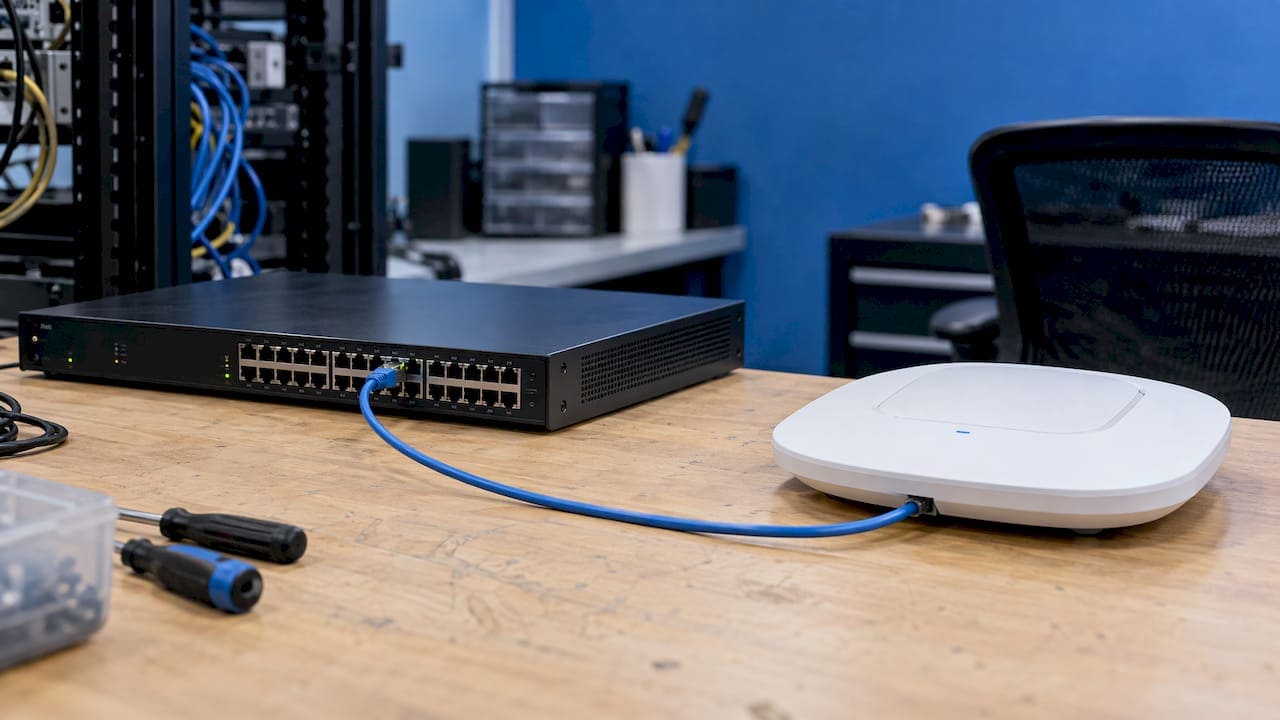
To size the PoE budget for your access points, add up the power each AP can draw from the switch port, include every other PoE device on the same switch, and add 20 to 30% headroom. Then check two numbers on the switch datasheet: the per-port limit and the total PoE budget. A switch can have 24 PoE+ ports and still only power a dozen of them at full load.
This guide shows how to do that calculation for a commercial floor, which AP power figures to use, where cable loss fits in, and what the switch does when the budget runs out. It is written for IT directors, facilities managers and project teams planning a WiFi build or refresh in New York City and the surrounding region.
TL;DR
- A PoE budget is the total wattage a switch can supply across all active ports at once. It is separate from the per-port limit.
- Budget each AP at what the switch must allocate, not what the AP draws on a quiet day. Most current Wi-Fi 6 and Wi-Fi 7 APs need 802.3at (PoE+) or 802.3bt, which means 30 W or more per port at the switch.
- Total the load for every PoE device on the switch, then add 20 to 30% headroom for growth and boot-up peaks.
- Over-budget switches shut down low-priority ports. Underpowered APs lose radios, throughput or coverage.
- Cabling matters: long runs and poor conductors waste power before it reaches the AP.
What a PoE budget actually is
A PoE power budget is the total amount of power, in watts, that a switch can supply across all of its active PoE ports at the same time. NETGEAR’s knowledge base describes it this way, and it is the number that decides how many APs a single switch can actually run.
Two terms come up in every datasheet:
- PSE (power sourcing equipment): the switch or midspan injector that supplies power.
- PD (powered device): the AP, phone, camera or other device that receives it.
The gap between what the PSE sends and what the PD receives is the cable loss. That is why the standards list two figures for each class.
Per-port limit versus total budget
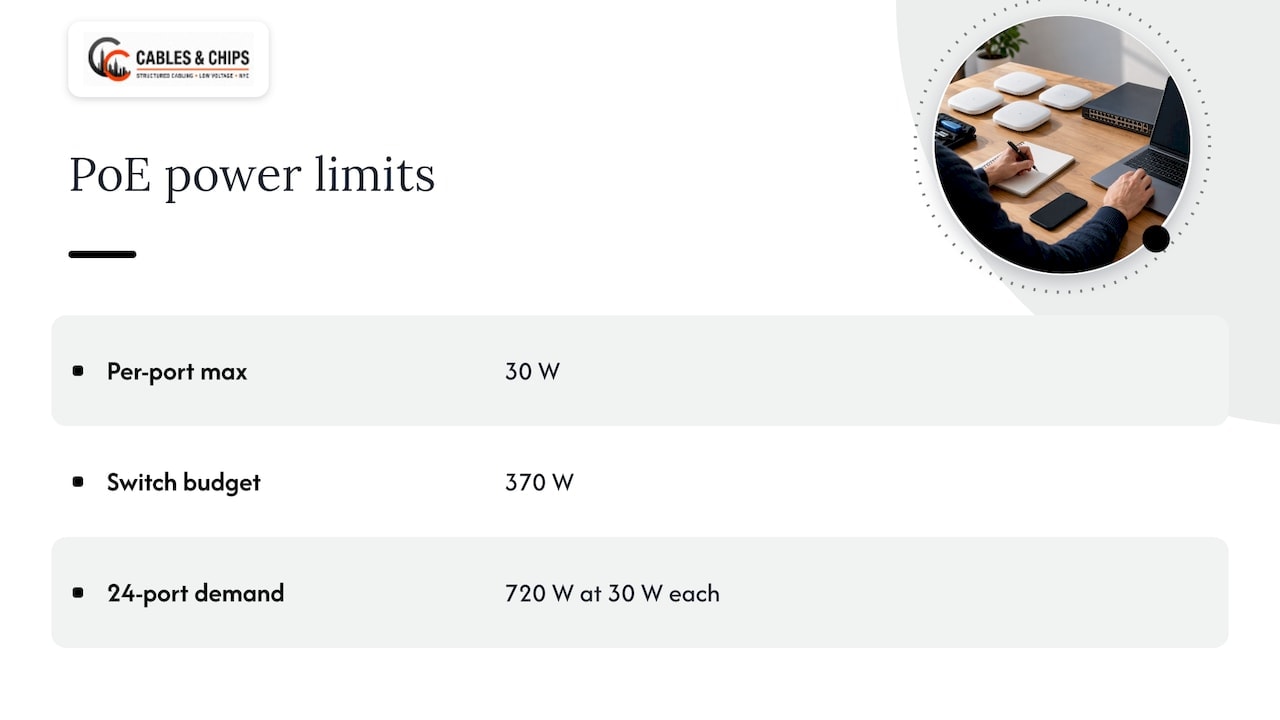
The per-port limit is the most a single port can deliver. The total budget is the most the whole switch can deliver. A 24-port PoE+ switch can advertise up to 30 W per port, but the power supply might only support a total of 370 W. Network Devices Inc. gives that exact example of a PoE+ switch with a modest total budget. Twenty-four ports at 30 W would need 720 W, so that switch cannot power every port at the maximum.
When you shop for a switch, read the total PoE budget line first, not the port count.
PoE standards and what each one delivers
The IEEE standards define how much power the switch provides and how much is guaranteed at the device. According to the HPE Aruba PoE planning guide (Edition 6):
| Standard | Common name | Power at the switch (PSE) | Power at the device (PD) |
|---|---|---|---|
| IEEE 802.3af | PoE | 15.4 W | 13 W |
| IEEE 802.3at | PoE+ | 30 W | 25.5 W |
| IEEE 802.3bt Type 3 | PoE++ | 60 W | 51 W |
| IEEE 802.3bt Type 4 | PoE++ | 90 W | 71.3 W |
The PSE column is the one you use for budgeting. The PD column is what the AP can count on after a worst-case cable run. For a deeper look at matching standards to cabling, see our guide on matching PoE standards to cabling.
How much power does an access point need?
There is no single number. AP power requirements vary by model, radio configuration and which features are active. HPE Aruba states that requirements vary by model: many APs run without restrictions on 802.3af or 802.3at, higher-performance models need 802.3at or 802.3bt for full functionality, and lower-end models may run on 802.3af with some features disabled.
Vendor documentation gives concrete figures:
| AP model | Requirement for full functionality | Source |
|---|---|---|
| Mist BT11 | 5.5 W | Juniper Mist |
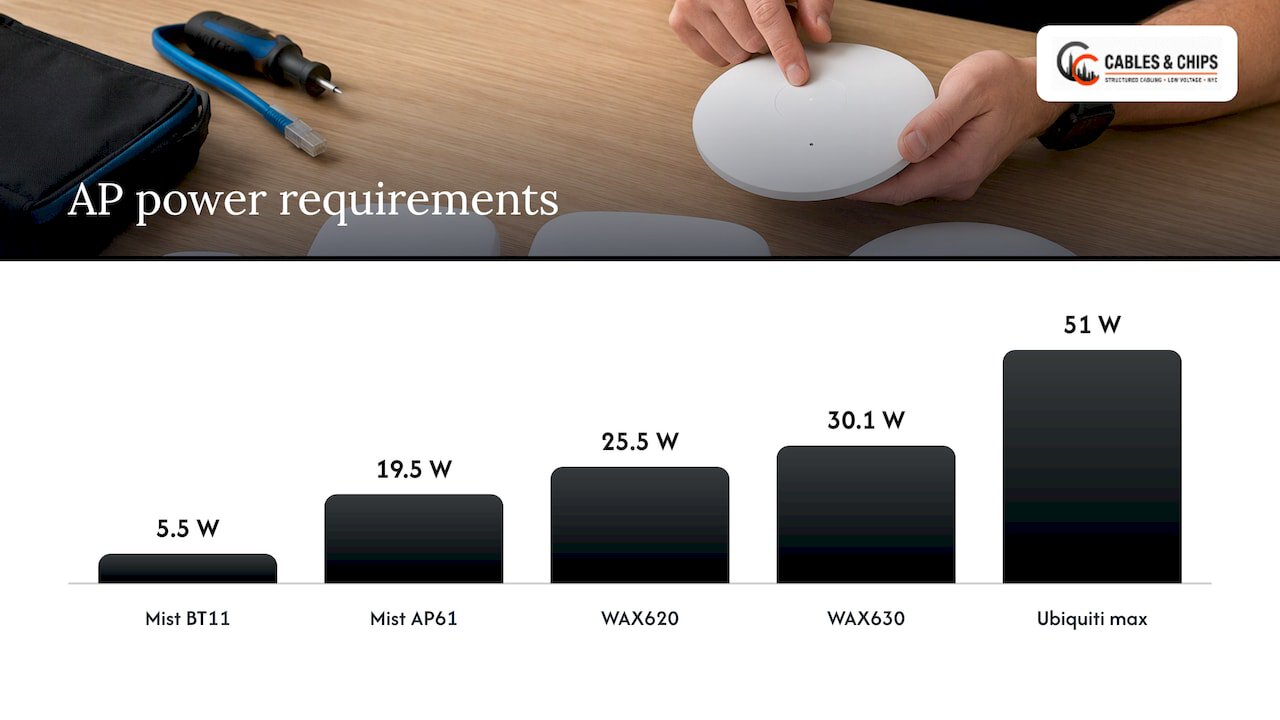
| Mist AP61 (Wi-Fi 5) | 19.5 W on 802.3at | Juniper Mist |
| Mist AP63 (Wi-Fi 6) | 25.2 W on 802.3bt | Juniper Mist |
| Mist AP17 (Wi-Fi 7) | 25.5 W on 802.3at without PSE, 29.3 W on 802.3bt including Eth1 PSE | Juniper Mist |
| Mist AP36 / AP37 | 29.3 W on 802.3bt | Juniper Mist |
| NETGEAR WAX620 | 25.5 W, PoE+ (802.3at) | NETGEAR |
| NETGEAR WAX630 | 30.1 W, PoE++ (802.3bt) | NETGEAR |
| Ubiquiti U7 Pro Max | 25 W | Ubiquiti Help Center |
| Ubiquiti U7 Pro XGS | 29 W | Ubiquiti Help Center |
Ubiquiti’s own list spans from 8 W for its smallest AP to 51 W for its most power-hungry audience-venue model. That range is why a blanket “15 W per AP” rule fails on a modern floor.
Our rule of thumb for planning is covered in more detail in our AP PoE requirements guide: 25.5 W at the device covers most APs, which means budgeting 30 W at the switch port. If your chosen model is rated higher, use the datasheet number.
What happens when an AP is underpowered
An AP that does not get enough power does not simply fail. It often runs in a reduced mode, which is harder to diagnose than a dead port.
- NETGEAR states that when the PSE does not provide enough power, an Insight Managed AP’s real-world throughput might drop by up to 25% and coverage by up to 20%.
- Cisco notes that underpowered APs show a “Low/Medium Power” status in the controller interface. A 3800 AP on 802.3af may not turn its radios on, and a 9115 AP may fall back to 2×2 radios, according to Cisco’s AP power requirements reference.
The user complaint is “WiFi is slow in the conference room.” The cause is a power budget decision made months earlier. This is why we treat power planning as part of commercial WiFi cabling best practices, not as a switch-purchasing detail.
How to calculate the PoE budget for your APs
Use this sequence for each switch, and repeat it per IDF.
- List every PoE device on the switch. APs first, then phones, cameras, badge readers, clocks and any PoE lighting or AV endpoints that share the switch.
- Find the power class or datasheet figure for each. Use the manufacturer’s maximum, not typical consumption.
- Convert to switch-side allocation. Devices draw less than the switch allocates. Use the PSE figure for the standard the device needs: 15.4 W for 802.3af, 30 W for 802.3at, 60 W or 90 W for 802.3bt.
- Add cable loss where runs are long. See the next section.
- Total the load in watts.
- Add headroom. Multiply by 1.2 to 1.3.
- Compare against the switch’s total PoE budget, and confirm enough ports support the class you need.
Ubiquiti’s documentation says plainly that PoE availability must be greater than the sum of all device power requirements to avoid instability or failure. We have a longer 24-port walkthrough with the same method in our PoE power budget guide for IT teams.
Why allocation, not consumption
Many switches reserve power by class when a device connects. Cisco explains that the initial allocation for Class 0, 3 and 4 devices is 15.4 W. A device can then request more through CDP or LLDP, up to 30 W. If the switch allocates by class and your budget math uses average draw, the switch will run out of allocatable watts well before the real draw reaches the limit.
A worked example: one floor, one IDF switch
Here is an illustrative floor. These numbers are an example we built to show the method, not a specific project.
| Device | Qty | Switch allocation each | Subtotal |
|---|---|---|---|
| Wi-Fi 6/7 APs (802.3at class) | 12 | 30 W | 360 W |
| IP phones (802.3af class) | 4 | 15.4 W | 61.6 W |
| Door controllers or cameras (802.3at class) | 2 | 30 W | 60 W |
| Total allocated load | 481.6 W | ||
| With 25% headroom | about 602 W |
A 24-port PoE+ switch with a 370 W budget fails this plan. A switch with a 740 W budget passes with room to spare. Both have the same port count and the same “PoE+” label, so only the budget line separates them.
Now compare it with the smaller case in TP-Link Omada’s setup guide: four PoE+ APs at 30 W each total 120 W, and with a 15% margin the minimum budget is 138 W. The method scales from four APs to four hundred.
Cable loss and the 100 meter run
Power drops as it travels. The PD figures in the standards table already reflect worst-case loss on a 100 m channel. But the switch has to send more than the AP needs, and that matters when you set per-port limits manually.
Cisco’s guide states that when you manually set a port’s maximum power allocation, you must consider power loss over the cable from the switch port to the powered device. Biamp’s specification guide shows the effect: depending on cable resistance, an 802.3at Class 4 device may need up to 34.20 W from the switch instead of the 30 W defined by the standard. Biamp also advises separating “Max Consumption” from “Max Power From Switch” when planning.
In practice that means:
- Keep AP runs well under 100 m where the building allows it.
- Use solid copper conductors, not copper-clad aluminum.
- Avoid undersized or damaged cable. Our notes on PoE over Cat5e failing near 90 meters cover what we see in older NYC buildings.
- Budget voltage drop on long or high-power runs, as we explain in calculating PoE voltage drop.
Testing the finished runs confirms the channel performs as designed. That is the purpose of cable testing and certification at handover.
How much headroom to leave
The sources vary slightly, and the right figure depends on how fast you expect to grow.
- CEDIA recommends calculating total watts per switch and leaving 20 to 30% headroom for future expansion.
- TP-Link Omada suggests a 10 to 15% margin to cover power dissipated in the cable.
For commercial floors we plan toward the upper end of that range. Offices add APs after a layout change, add cameras after a security review, and replace Wi-Fi 6 APs with higher-draw Wi-Fi 7 models. If you have a floor plan that may change, 25 to 30% is cheaper than replacing the switch.
What happens when the switch runs out of power
A switch that is over budget does not fail gracefully for every device. Dell’s PoE documentation explains that when the budget is exceeded, the next port to power up causes the lowest-priority port to shut down so higher-priority ports can come up. Ports get priority levels, so a switch with default settings may drop a ceiling AP instead of a desk phone.
Set port priority deliberately:
- Critical: APs in open work areas and conference rooms, access control.
- High: cameras covering entrances, core VoIP.
- Low: convenience devices.
Power policing is a related setting. Cisco’s documentation says that when a device draws more than its cutoff power, the switch can turn off the port or log a message. With policing disabled, nothing happens when a device exceeds its allocation, which could adversely affect the switch and other devices.
CEDIA adds a safety point: correct power planning prevents dropouts and instability, and it also prevents overheating. Its guidance for integrators includes keeping PoE devices on dedicated VLANs, labeling runs clearly and using managed switches for monitoring. For practical field advice on monitoring PoE loads and labeling runs, that article is a good companion to this one.
Check the switch configuration before you plug in APs
A correct budget does not help if the switch negotiates the wrong power level. Juniper’s documentation notes that on most Cisco switches LLDP is disabled by default. It must be enabled on the interface before you connect an AP that needs 802.3at or higher. Otherwise the port supports 802.3af only, and the AP may start in a limited mode.
A pre-deployment checklist:
- Confirm the switch’s total PoE budget against the calculated load plus headroom.
- Confirm how many ports support the class the APs need (PoE+ or PoE++).
- Enable LLDP or CDP power negotiation where the platform requires it.
- Set port priority for APs and critical devices.
- Turn on monitoring so you can see real draw per port.
- Label every run at both ends and record it in your documentation. Our as-built documentation guide shows what a complete record includes.
Where cabling and closet design affect the budget
Power planning sits next to cabling design. Three decisions made in the cabling phase change the budget you can rely on.
AP count and placement. Coverage design sets how many APs you need. More APs at lower power can be easier to power than fewer high-draw APs, but each one needs a cable run and a port.
Switch location. A telecom room that sits centrally keeps runs short. Short runs lose less power and leave more of the budget for the device.
Cable category. Cat6 and Cat6A handle PoE well when installed to spec. For new office buildouts we usually pair structured CAT6 cabling with a closet layout that leaves rack space for a second switch, so adding PoE capacity later does not mean re-doing the room.
If your IDF is already crowded, cleanup and reorganization often come before any budget upgrade. A tidy patch panel and documented ports make it much easier to see which switch is carrying which load.
Common mistakes we see
- Counting ports, not watts. A “24-port PoE+” label says nothing about total power.
- Using typical draw. The switch allocates against class or configured maximum, not against what the AP draws at 2 p.m. on a Tuesday.
- Mixing everything on one switch. APs, cameras and phones on one under-budgeted switch means the lowest-priority one drops first, and it is not always the one you wanted to lose.
- No headroom. The first added AP puts the switch over budget.
- Skipping LLDP. The AP connects at 802.3af and runs with reduced features.
- Ignoring run length. A 95 m run to a high-power AP uses more of the budget than a 30 m run to the same AP.
Our perspective
Most PoE budget problems we are called in to fix did not start with a bad switch. They started with a good switch bought against the wrong number. Someone counted ports, someone trusted a “typical” wattage, and nobody wrote down the load per closet.
In commercial New York buildings the margin for error is smaller than in a new-build suburban office. Risers are tight, closets are shared and ceilings are full. We design the cabling and the power budget together: where each AP goes, how long its run is, which closet feeds it, and what that closet’s switch has to deliver with headroom left over.
Our approach is to treat the budget as part of the documentation. Every run is labeled, tested and recorded, and the closet is organized so the next technician can see what is powered and why. Your network is only as strong as the infrastructure behind it, and a switch that quietly shuts down ports under load is infrastructure that was not planned as a system.
Ken
Plan the cabling behind your APs with Cables & Chips
We are a low voltage and data network contractor at 20 Vesey Street in Lower Manhattan, with more than 40 years of experience in commercial environments. Our work covers structured CAT6 and CAT6A cabling, WiFi design and access point cabling, cable testing and certification, server rack installation and MDF/IDF cleanup. We are licensed and insured, and we offer a no-obligation site survey.
If you are planning a WiFi rollout, an office relocation or an AP refresh, we can survey the space, map AP locations and runs, and document the closets so your switch choice is made against real numbers. See the full list of low voltage cabling services.
To schedule a site survey, contact us through cables.nyc.
FAQ
How do I calculate the PoE budget for access points?
List every PoE device on the switch, assign each the switch-side power for its standard (for example 30 W for an 802.3at AP), and add them together. Multiply the total by 1.2 to 1.3 for headroom. The switch’s total PoE budget must be equal to or greater than that figure.
How much power does a PoE access point need?
It depends on the model. Published vendor figures range from about 5.5 W for a small AP up to around 30 W for Wi-Fi 6 and Wi-Fi 7 models, and some specialty APs go higher. Most current business APs need 802.3at (PoE+) or 802.3bt to run with every feature enabled.
What does power budget mean on a PoE switch?
It is the total wattage the switch can deliver across all active PoE ports at once. It is separate from the per-port limit, so always read both numbers on the datasheet.
What happens if the PoE budget is exceeded?
The switch shuts down lower-priority ports to keep higher-priority ones powered. Priorities are configurable, so set them so APs and security devices stay on. An AP on insufficient power may also run with reduced throughput or fewer radios.
Sources
- NETGEAR: Power over Ethernet (PoE) standards and compatibility
- HPE Aruba: Power over Ethernet Planning and Implementation Guide
- HPE Aruba: AP PoE Requirements
- Juniper Mist: PoE Requirements
- NETGEAR: What happens if my Insight Managed wireless AP does not get enough power from PoE
- Ubiquiti Help Center: PoE Availability and Modes
- Cisco: Access Point Power Requirements
- Cisco: Power monitoring and power policing
- Biamp: Specifying PoE switches for Biamp Tesira devices
- Dell: Power over Ethernet Support
- CEDIA: Leveraging PoE for Lighting & AV Systems
- TP-Link Omada: How to Set Up a PoE Network Using Omada PoE Products
- Network Devices Inc.: How to Choose a Network Switch for Your SMB