
Ethernet Link Flapping: Causes, Diagnosis, and Fixes
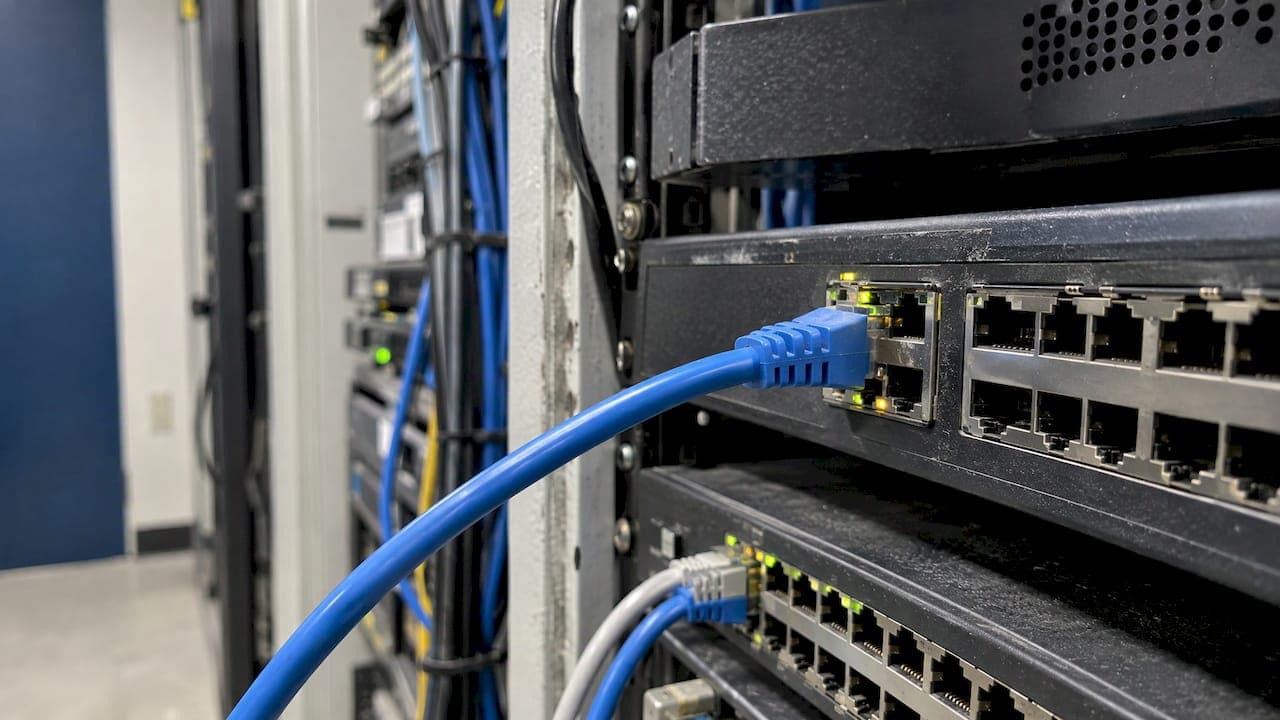
Ethernet link flapping is a switch port that keeps going up and down. In most cases the cause is physical: a bad or unsupported cable, a faulty or unsupported transceiver, or a negotiation mismatch at one end of the link. The fastest fix is to read the logs for the flapping port, then swap the cable, the port and the transceiver one at a time with known-good parts until the flapping stops.
This guide is written for IT directors, facilities teams and office managers who run commercial networks. It shows how to confirm that a port is really flapping, how to separate the cable from the port, the optic and the configuration, and how to keep the problem from returning.
TL;DR
- A flapping port repeatedly changes between up and down. Back-to-back up and down messages in the switch syslog for one port are the classic sign.
- The usual suspects are cabling, SFP or SFP+ transceivers, duplex or negotiation mismatches, and endpoint power-save behavior.
- Isolate the fault by changing one thing at a time: cable, port, transceiver, then the device on the other end.
- Test the installed cable with a certifier, not just a link light, and fix terminations and patch cords before replacing hardware.
- Turn on link flap prevention so a bad port is shut down for investigation instead of destabilizing the whole network.
What link flapping actually is
Link flapping is a condition where a physical interface on a switch oscillates between up and down, which disrupts connectivity for whatever sits behind that port. Cisco describes it in exactly those terms, and the behavior is the same on other vendors’ gear.
There is also a working definition for when a port counts as flapping. In Cisco’s small business switch documentation, a port flap is a physical interface that goes up and down three or more times a second for at least 10 seconds. Real-world flaps are often slower and more irregular than that. A port that drops once every few minutes is still a problem, even if it never crosses a formal threshold.
How it differs from a slow connection
A slow link stays up and moves data poorly. A flapping link does not stay up. The difference matters because the fixes differ.
- Slow but stable: the interface counters show the link up the whole time, usually with rising errors, drops or congestion.
- Intermittent: users report that things work and then stop, with no pattern they can describe. This is often flapping seen from the outside.
- Flapping: the switch itself records the interface going down and coming back up, and the log shows it.
The log is what separates guesswork from diagnosis. If the switch never recorded a down event, you are chasing a different problem, such as congestion, a DHCP issue or a failing application.
Why a single flapping port hurts more than one user
Every link state change is a topology event. Frequent state changes cause topology changes that complicate network traffic and, according to Cisco, can eventually lead to a network shutdown. An uplink between two switches that flaps can disturb spanning tree, interrupt VoIP calls, drop wireless access points and break video conferences across a floor. A single user’s desk port flapping is annoying. A flapping uplink or access point port is an outage.
Symptoms you will see before you read a log
Users rarely say the word flapping. They describe what it feels like. Here is what to listen for.
- A desktop shows the network icon flickering between connected and disconnected.
- A VoIP phone reboots or shows no registration several times a day.
- A WiFi access point drops off the controller, then reappears minutes later.
- A video call freezes for a few seconds and recovers on its own.
- A printer, camera or door controller goes offline for short stretches, then returns without anyone touching it.
- A link light on the switch blinks off and on, or changes color.
If one device shows these symptoms, start with that device’s port. If several unrelated devices on one switch or one closet show them together, suspect shared infrastructure: an uplink, a power problem in the closet, a failing patch panel section or a damaged bundle of cables.
What causes Ethernet link flapping
The vendor documentation agrees on the main list. Flapping can come from bad or unsupported cabling, faulty or unsupported SFP and SFP+ transceivers, duplex or negotiation mismatches, endpoint power-save behavior and other physical-layer faults, according to the Cisco Catalyst 9000 troubleshooting guide. Cisco’s guidance for smaller switches adds that bad, unsupported or non-standard cable or SFPs, other link synchronization issues, and incompatibility with Energy Efficient Ethernet can make a connection flicker.
| Cause | What it looks like | First check |
|---|---|---|
| Damaged or poorly terminated copper | One port flaps, often when cables are moved or touched | Swap the patch cord, then test the permanent link |
| Unsupported or failing SFP/SFP+ | Flapping on fiber or DAC uplinks, sometimes after a hardware change | Replace with a known-good, supported module |
| Dirty or damaged fiber connector | Intermittent drops on fiber, optical power readings low or unstable | Inspect and clean the connector, read optical levels |
| Duplex or negotiation mismatch | Intermittent connectivity, errors on the port | Compare settings on both ends |
| Energy Efficient Ethernet or endpoint power save | Flaps on idle devices or devices that sleep | Disable EEE on the port as a test |
| Bad switch port | Flapping follows the port, not the cable | Move the cable to a known-good port |
| Forward error correction mismatch | High-speed optical links flap with FEC errors | Verify FEC settings match on both sides |
Cabling is the first suspect for a reason
Two of the top ranking vendor pages say the same thing in plain terms: try a different cable, then a different port. That is not laziness. Copper links fail in ways a link light does not reveal. A conductor pair that is partly broken can negotiate a link, carry traffic for a while and drop the moment someone brushes the cable. A patch cord that was crimped on site, kinked behind a rack door or pulled hard around a corner is a frequent offender.
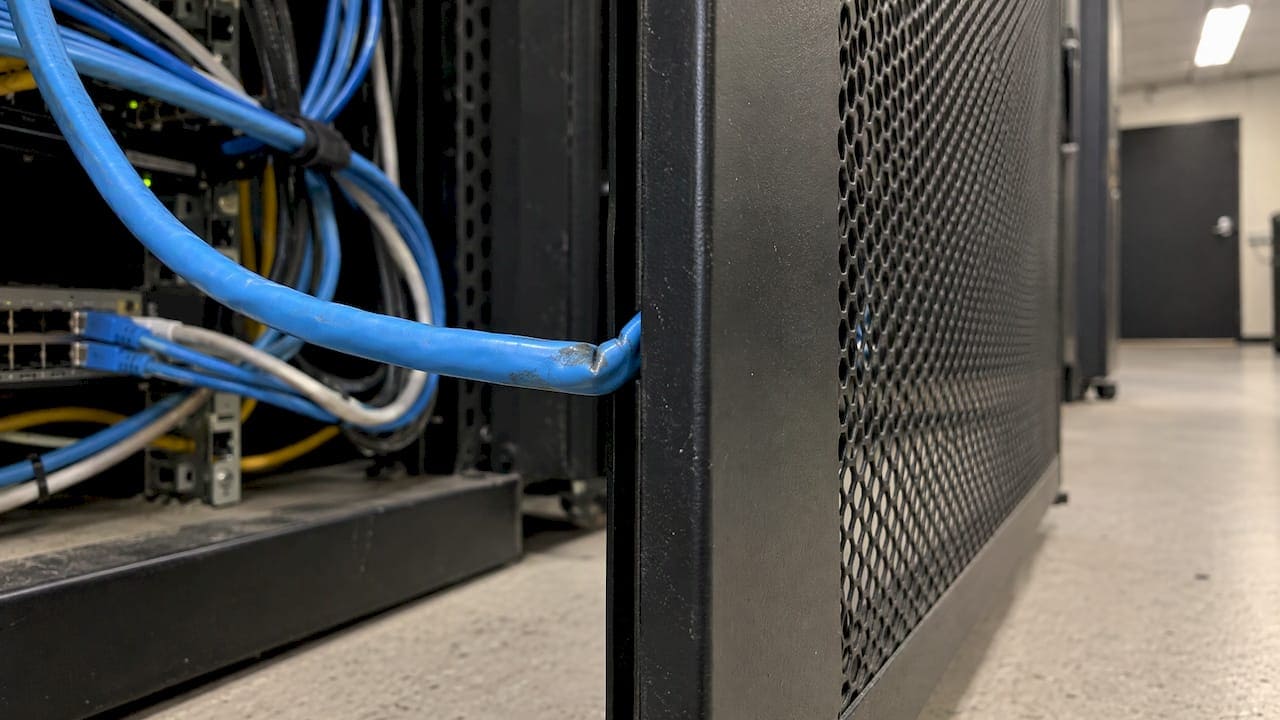
If you want to understand what separates a good patch cord from a bad one, our guide to patch cords, their types and key specs covers it.
Duplex and negotiation mismatches
A duplex mismatch can cause intermittent connectivity and loss of connection, and on a Gigabit link, both ends must have link negotiation enabled or disabled together. Hardcoding speed or duplex on one side and leaving the other on auto is a classic way to create trouble, and it still happens when someone applies an old setting to a new switch.
Transceivers and forward error correction
Optical links add their own failure modes. In one documented case, a Juniper QFX5120-48T link using a QSFP-100G-SR4-T2 module flapped frequently with FEC errors, and the problem was resolved by disabling FEC91 on both sides. The lesson is general: when a high-speed optical link flaps, check that the transceiver is supported on that platform and that error correction settings agree at both ends. Do not assume the fiber is at fault, and do not assume it is not.
Endpoint behavior
Sometimes the switch is fine and the device is the cause. Power-saving features, sleeping network cards and incompatibility with Energy Efficient Ethernet can all make an endpoint drop its link and bring it back. This is why a flapping port on a desktop or a camera should be tested with a different device before anyone condemns the cable.
How to diagnose a flapping port, step by step
The goal is to change one variable at a time so each result means something. Work in this order.
- Confirm the flap in the logs. Flapping is often identified by reviewing the system log for back-to-back up and down messages on a specific port. Note the port, the timestamps and the interval. If the log is sent to a central syslog server, search there for the port name.
- Record the pattern. Does it flap every few seconds, every few minutes, or only at certain times of day? A regular interval often points to a device schedule or a power-save feature. Random timing points to a physical fault. Flaps that start when staff arrive in the morning can point to a cable that moves.
- Check both ends. Look at the interface settings, speed, duplex and negotiation on the switch and on the device. Make sure they match.
- Swap the patch cord. Replace the cable between the device and the wall jack, and the cable between the patch panel and the switch, with known-good cords. Many flaps end here.
- Move to a known-good port. Cisco’s advice is to move the cable to a known-good port to troubleshoot a suspect port. If the problem stays with the cable run, the port is not the cause. If it follows the port, you have a hardware question.
- Swap the transceiver. On fiber or SFP-based copper links, replace the module with a known-good, supported one and compare.
- Use the switch’s own diagnostics. For copper, a time domain reflectometer test built into many switches can point at an open, short or damaged pair. For fiber, digital optical monitoring reports transmit and receive power so you can see a dying laser or a dirty connector. The Catalyst 9000 guide recommends TDR for copper and DOM for fiber.
- Run a loopback test when the port itself is in doubt. A physical loopback tests and verifies the transmit and receive ports of a Gigabit Ethernet interface, which is why Juniper recommends it. A port that cannot hold a loopback link steady is a port to retire.
- Test the endpoint. Connect a different device to the same port and cable. If the flapping stays with the original device, update its network driver or firmware and review its power-save settings.
Keep notes as you go
Write down each swap and each result. It is easy to change three things at once under pressure and lose track of which one mattered. A short log also helps if you later need a manufacturer’s support team or a cabling contractor to pick up where you left off.
What a link light does not tell you
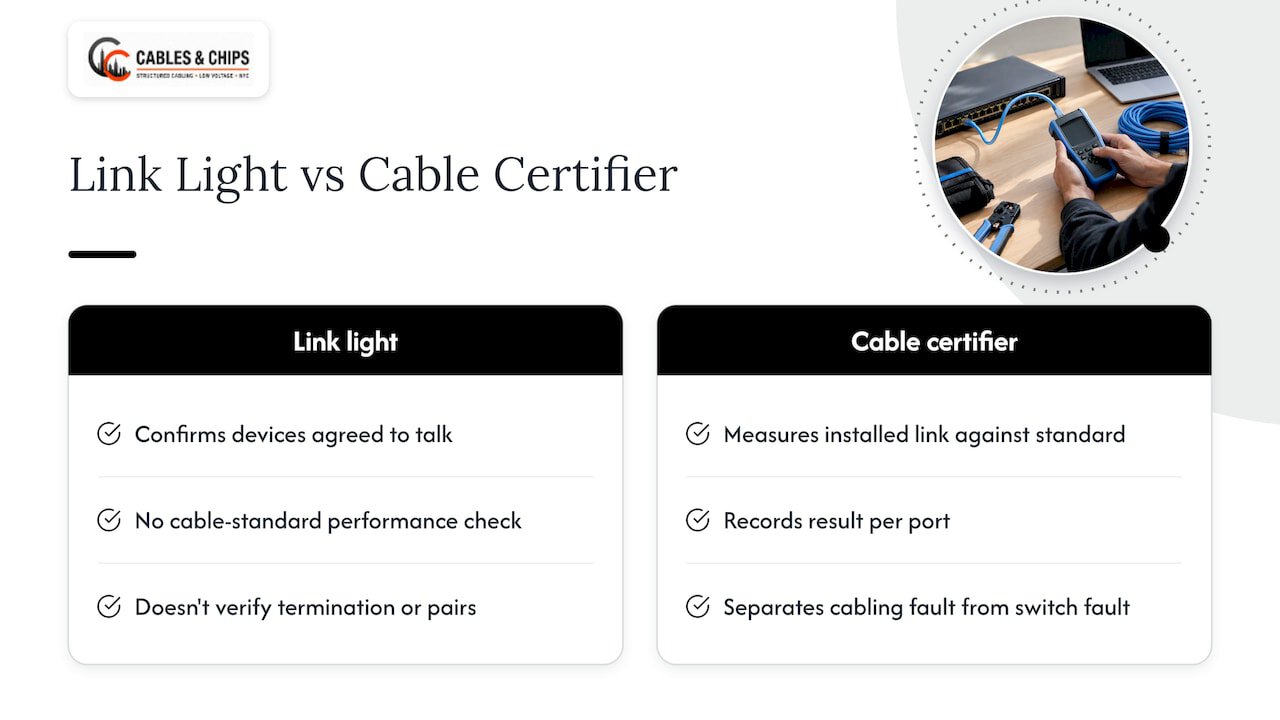
A green link light means two devices agreed to talk. It says nothing about whether the cable meets the performance standard, whether the termination is sound, or whether the pairs are intact under movement. This is the gap behind many repeat flapping tickets: the cable passes the link-light test, the port is replaced, and the problem returns a month later.
A cable certifier measures the installed link against the standard and records the result per port. That is the evidence that separates a cabling fault from a switch fault. We explain why this matters in why cable testing matters before use in commercial networks, and the detail on what a good report contains is in our guide to cable testing standards with examples. For the broader picture of how the permanent link, channel and test limits fit together, see cable plant testing for IT professionals.
Fiber links
On fiber, flapping often traces to a contaminated or damaged connector, a bend that is too tight, a mismatched polarity or a link with more loss than the optics can tolerate. Optical loss testing shows whether the link is within budget, and an OTDR locates the event along the run. Our guides to optical loss testing and OTDR testing explain the methods, and fiber polarity covers a common cause of links that never come up cleanly after a move or a cleanup.
How to fix it once you know the cause
Cable and termination faults
- Replace suspect patch cords with factory-made, tested cords of the correct category.
- Re-terminate any jack or patch panel punch-down that fails certification, then retest.
- Where a permanent run fails and cannot be repaired, pull a new run rather than patching around it.
- Check for strain. Cables that hang from a switch port, get pinched by a rack door or are bundled too tightly will fail again.
Port and transceiver faults
- Move the device to a spare port and relabel the original as suspect.
- Replace unsupported or third-party modules that the switch does not accept reliably with supported ones.
- On optical links, clean and inspect connectors before swapping anything else, and confirm that FEC and speed settings match at both ends.
- If the port fails a loopback test or flaps with nothing connected to a known-good cable, escalate to the manufacturer.
Configuration faults
- Set speed, duplex and negotiation the same way on both ends. On Gigabit links, enable or disable negotiation together.
- If Energy Efficient Ethernet is implicated, test with it disabled on that port.
- Update switch firmware and endpoint drivers. Vendors fix link-handling bugs, and running current firmware is part of Cisco’s standard prevention advice.
Endpoint faults
- Disable network adapter power management on devices that sleep and drop the link.
- Replace the device’s network interface or the device itself if the flaps follow it to other ports and cables.
Prevent flapping from spreading
You cannot always fix a port at the moment it starts to fail. You can stop it from hurting everything else. Link flap prevention mechanisms, such as setting a port to err-disable, automatically shut down ports that experience excessive flapping so the topology stays stable while administrators investigate. Cisco’s configuration guidance describes the same purpose: err-disabling a port with excessive flapping gives you time to debug and locate the root cause.
A prevention routine that works for most commercial environments:
- Enable link flap prevention on access and uplink ports, following your switch vendor’s documentation.
- Send switch logs to a central server and alert on repeated up and down messages for the same port.
- Certify every new cable run at installation and keep the reports.
- Keep firmware current on switches and on critical endpoints.
- Label ports and patch cords so the person on call can find the right one at 7 a.m.
- Keep as-built documentation current so a failing run can be traced without guesswork. Our structured cabling as-built documentation guide shows what to record.
Why the network closet matters
A surprising number of flaps start in the closet, not in the ceiling. Patch cords stretched across a rack, cables tied to a hot exhaust fan, mixed lengths with no slack management and unlabeled spaghetti behind a patch panel all make it more likely that a cable gets bumped or damaged during routine moves. Clean rack work is a reliability measure, not decoration. If your racks need attention, see our server rack setup checklist and our overview of how server rack cabling works.
When flapping points to the cabling plant
Swapping a cord is a five-minute test. Some patterns say the cabling itself needs attention rather than another hardware swap.
- Several ports on one patch panel or one cable pathway flap together.
- Flaps began after a move, a renovation, ceiling work or a nearby construction project.
- Replacing the port and the switch did not change anything.
- The cable is old, was installed without certification or has no records.
- Runs are close to the limit of the standard and carry more demanding traffic than they did when installed.
- Mixed categories and undocumented patching make it unclear what is connected to what.
In these cases a systematic test of the permanent links, and a clean-up of the patching in the closet, is cheaper than a month of single-port tickets. Our guide on how to plan a structured cabling office buildout and the overview what is structured cabling describe how a properly designed system avoids these failure points in the first place.
Need the cabling checked in New York City?
If your flapping ports trace back to the cable plant, we can test and certify the installed links, replace failed runs, clean up the patching and document what is in the closet. We work with commercial offices, secure facilities and building teams across New York City, and we start with a no-obligation site survey.
See our cable testing and certification service, review structured CAT6 cabling installation or fiber installation, or browse everything we do on the services page. To schedule a site survey, start at cables.nyc.
Our perspective: treat flapping as a cabling record, not a one-off ticket
Most of the flapping we are called about was never one bad cable. It was a network closet with no records, patch cords of unknown age, and runs that nobody had certified since the day they were pulled. Each ticket got a quick swap, and each swap hid the real question: what is the actual condition of this cabling?
Our view is that every link in a commercial space should be tested, labeled and documented when it is installed, and retested when something changes. Your network is only as strong as the infrastructure behind it. When a port flaps, a certification report and an accurate as-built record let your team answer in minutes whether the fault is in the cable, the termination, the patching or the equipment.
After more than 40 years working in commercial environments in New York City, we put the same discipline into every job: clean terminations, tidy racks, tested links and documentation that the next technician can actually use. That is what makes a network easier to maintain and a flap easier to find.
Ken
FAQ
What causes link flapping?
The most common causes are bad, unsupported or non-standard cabling, faulty or unsupported SFP and SFP+ transceivers, and duplex or negotiation mismatches. Endpoint power-save features and Energy Efficient Ethernet incompatibility also cause it. Start with the cable and the port, because they are the quickest to swap and the most likely to be at fault.
Why is my Ethernet connection flickering?
A flickering connection usually means the link is dropping and returning. The cause may be a damaged patch cord, a loose or poorly terminated jack, a sleeping network adapter or a negotiation problem. Check the switch log for repeated up and down messages on that port, then replace the cord and try a different port.
How do I fix port flapping?
Swap the suspect cable or transceiver with a known-good one, and move the connection to a known-good port to see whether the fault follows the port. Then match speed, duplex and negotiation at both ends, and update firmware. If the cable keeps failing, have the installed run tested with a certifier.
How do I fix a loose Ethernet connection?
Reseat the plug at both ends and replace the patch cord, since worn latches and damaged connectors are common. If the wall jack or panel termination feels loose or the cable only works when held in one position, the termination needs repair. In an office, have the run re-terminated and certified rather than taping or bending it into place.
Sources
- Troubleshoot Port Flaps on Catalyst 9000 Switches, Cisco
- Diagnose Link Flapping on a Switch, Cisco
- Troubleshoot Switch Port and Interface Problems, Cisco
- Configure Link Flap Prevention on a Cisco Business Switch, Cisco
- QFX Links Flapping, FEC Errors, Juniper
- Perform Loopback Test for Gigabit Ethernet Interfaces, Juniper